If you answer customer questions, collaborate with brands, or manage creator DMs, opening a message should not automatically become a promise to reply immediately. Instagram provides a built-in way to stop sending read receipts, the small Seen indicator that can appear after you open a message.
Here is how to turn off read receipts on Instagram: on your phone, open your profile menu, go to Messages and story replies, choose Show read receipts, and turn the switch off. You can also change the option inside one conversation. The paths below distinguish those controls, with a practical way to check your result without guessing.
The Fast Route
Every chat: Profile → menu → Messages and story replies → Show read receipts → Off.
One person: Open the DM → tap the name → Privacy & safety → Read receipts → Off.
Use the mobile app. Label placement can differ between Instagram versions.
What Read Receipts Show in Instagram Messages
A read receipt communicates that a participant opened or viewed a message. In many direct conversations, the sender sees Seen beneath a message once the recipient has read it. That does not reveal what the recipient thought, whether a decision was made, or when a response will arrive.
Meta announced controls for all chats and individual conversations in its official Instagram messaging update. It is a privacy control, not an inbox-management tool: turning receipts off does not delete a DM, block the sender, send an automatic reply, or change the contents of your conversation.
For a solo freelancer, a message about a quote might need research before a useful answer. For a shop, an order question may require checking stock. Read receipts and response speed are separate matters.
How to Turn Off Read Receipts for All Chats
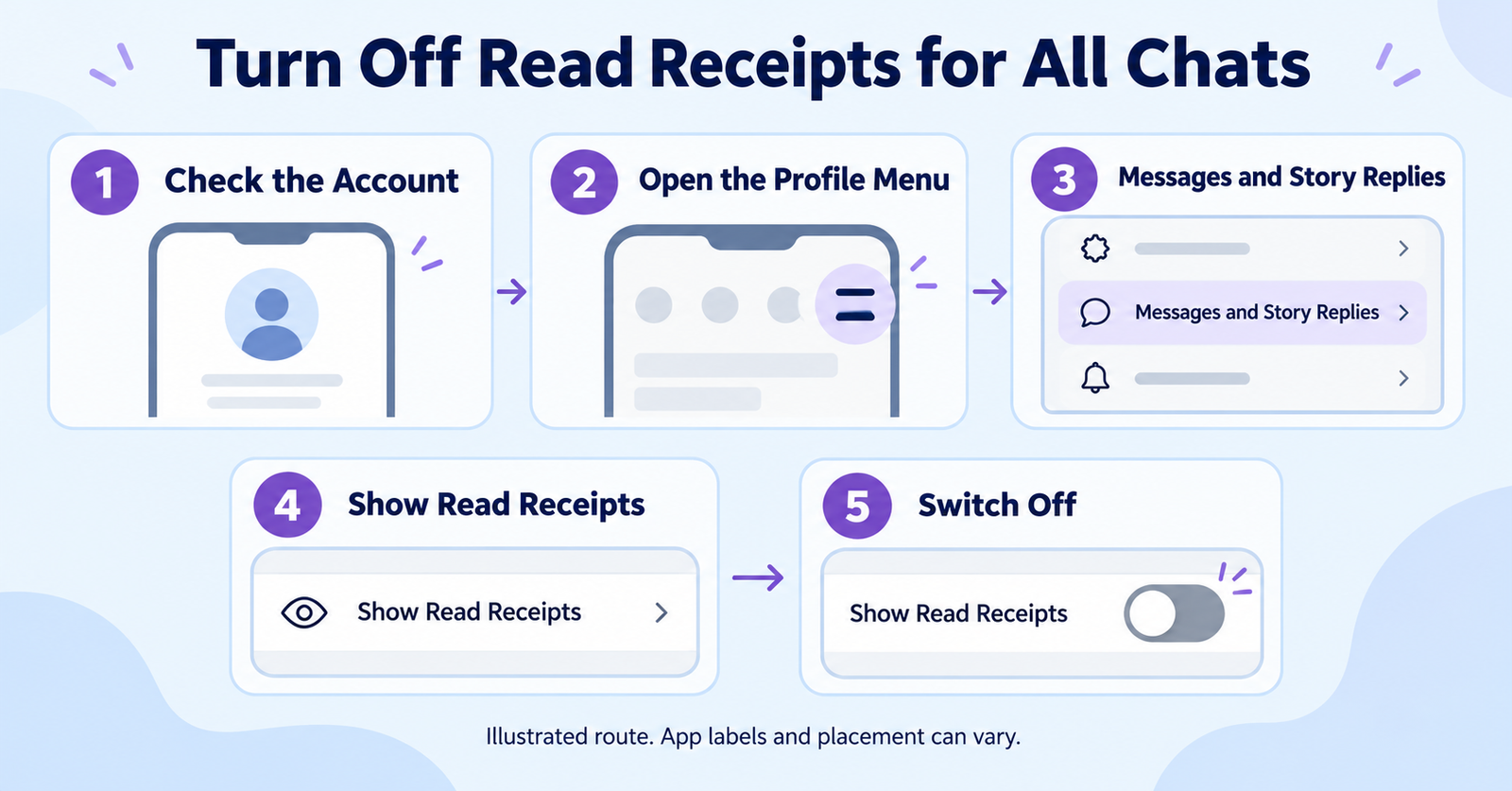
- Open the Instagram app on your Android phone or iPhone and switch to the account whose messages you want to manage.
- Tap your profile picture, then tap the three-line menu at the top.
- Find Messages and story replies in the settings menu. Instagram may label the surrounding screen Settings and activity or similar.
- Tap Show read receipts.
- Switch Read receipts off, then return to your inbox.
This is the documented account-wide route. It is especially useful when you handle many client inquiries and want one consistent default rather than managing every person individually. If you use more than one Instagram account, check the setting on the account you actually use for those DMs.
How to Turn Off Read Receipts for One Person
Sometimes you want read receipts visible for collaborators but not for a demanding sales contact. Instagram also offers a conversation-level control, described in a current walkthrough of individual and account-wide DM settings.
- Open the Instagram DM inbox on your phone.
- Open the conversation with the person whose read receipts you want to change.
- Tap their name at the top to open conversation settings.
- Open Privacy & safety.
- Turn Read receipts off for that conversation.
This keeps your decision narrow: you do not need to block, restrict, mute, or unfollow the person merely to change the Seen signal. If the menu is not in the same place as a tutorial screenshot, look for the privacy controls inside that specific chat rather than assuming the option has disappeared.
How to Override the All-Chats Setting
The all-chats switch sets a default. A setting configured for one particular conversation may override that default. This explains why someone can sometimes still see a read receipt even after you turn the main setting off.
Which Control Should You Change?
| Goal | Where to Go |
|---|---|
| Hide Seen generally | Messages and story replies |
| Change one contact | That chat’s Privacy & safety |
| Unexpected Seen label | Inspect both settings and retest |
For example, you might disable receipts globally during a busy launch week but intentionally enable them for a cofounder. If you later notice Seen appearing unexpectedly in that cofounder’s thread, check its individual setting. Do not infer that Instagram ignored your global switch without inspecting the exception.
Read Receipts vs. Online Activity Status
These two privacy features are easy to confuse. A read receipt indicates that a message has been viewed. Activity status concerns whether your account appears online or recently active. Turning one off does not automatically turn off the other.
If your concern is people expecting replies because they can see that you are online, look separately for Show activity status in Instagram’s Messages and story replies settings. Conversely, hiding activity status does not replace the read receipt controls above.
Neither setting guarantees that someone cannot infer you have seen a message. You may reply, react, mention something from the DM, or otherwise make your knowledge clear. Privacy controls are most useful when you understand their scope rather than treating them as invisibility modes.
Why Instagram Read Receipts Still Show Seen
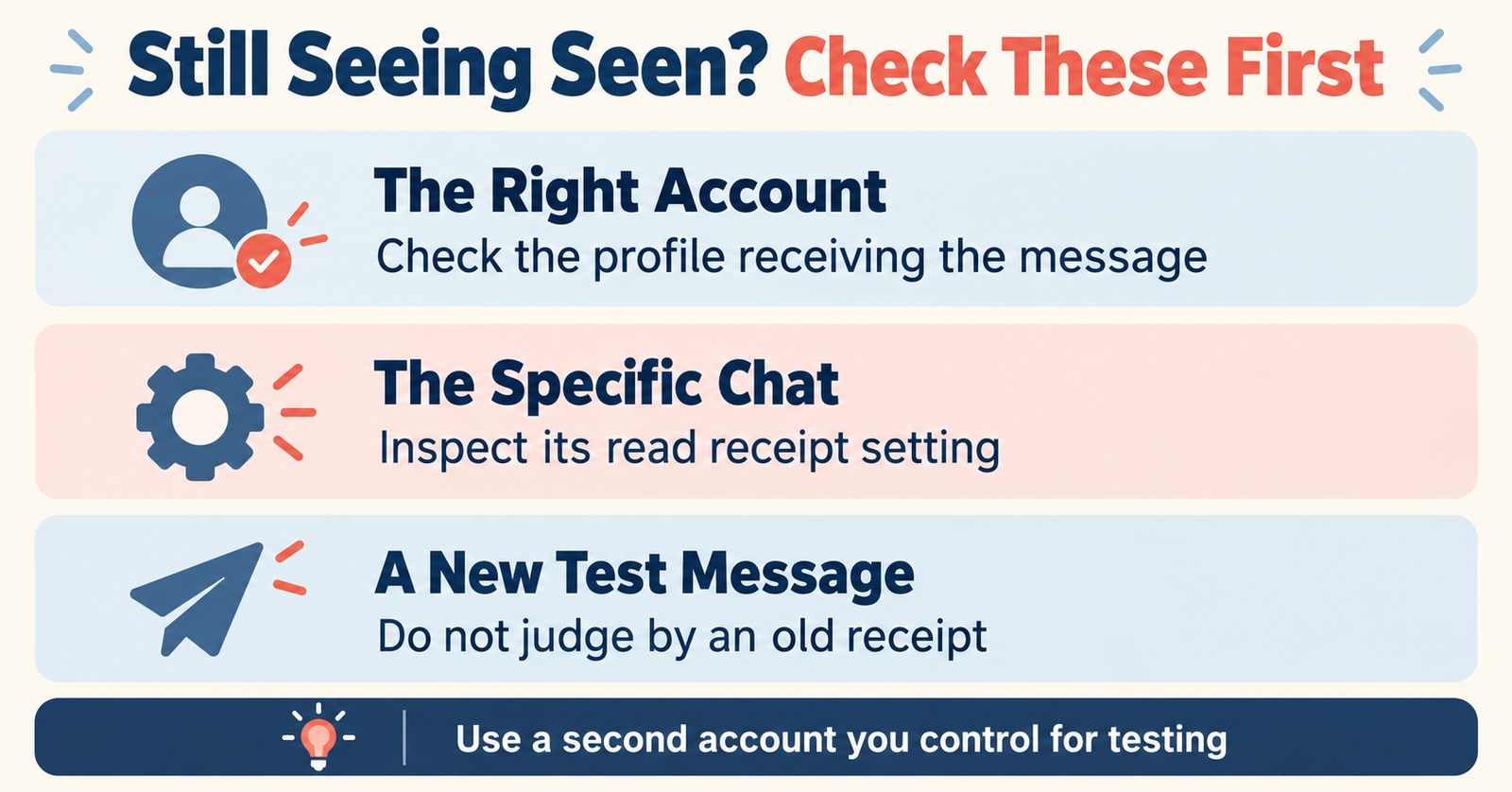
If you believe Seen still appears, avoid repeatedly toggling controls without checking what changed. Work through these possibilities in order:
- Wrong account: verify that you changed settings on the actual professional or creator profile receiving the message.
- Per-chat override: inspect the affected conversation’s Privacy & safety setting as well as the global setting.
- Old receipt: do not assume switching a setting off removes Seen information that was already transmitted for an earlier message.
- Different chat mode: some messaging modes or chat types may behave differently. Check current in-app notices rather than relying on a universal promise.
- Outdated interface: update the app, reopen the relevant settings, and use the current labels visible on your device.
A Safer Test
With another account you control, exchange a new test DM after changing the setting. Check that conversation’s read receipt behavior. Do not use a real customer’s unanswered message to experiment.
This is a practical check, not proof that all Instagram chat modes work identically.
A DM Response System for Creators and Small Businesses
Read receipts do not solve slow service. If you run a business or creator inbox, pair the privacy setting with a response policy that gives people clarity without promising instant availability.
- Sort intent: distinguish a genuine booking or partnership question from spam and low-priority outreach.
- State a realistic response window: for example, say that inquiries are reviewed on business days only if you can consistently meet that promise.
- Keep answers specific: ask for the project date, product size, or order reference only when needed, and avoid requesting sensitive information inside public comments.
- Move complex requests appropriately: for large quotes or secure order details, guide people toward the contact channel you actually monitor.
Imagine a photographer receiving three inquiries while covering an event. Turning off Seen can remove unnecessary pressure, but a clear booking workflow ensures that people still know what to expect. For a small handmade shop, a measured reply after checking inventory is better than a rushed answer that turns out to be wrong.
Privacy and performance should not be confused either. If you use your profile to attract clients, our guide to checking Instagram bio-link activity without exposing visitor identities explains what profile analytics can and cannot reveal. It addresses link taps, not DM read receipts.
Frequently Asked Questions About Instagram Read Receipts
Can I Turn Off Seen for Only One Instagram Chat?
Yes. Open that conversation, tap the person’s name, find Privacy & safety, and change Read receipts there. The app labels may vary.
Does Turning Off Read Receipts Hide My Online Status?
No. Activity status is a separate control. Review it independently if the online indicator is your concern.
Can I Change Read Receipts on a Computer?
The documented and most consistently described controls are in Instagram’s mobile app. If a desktop interface does not show the setting, use the app rather than assuming the feature is unavailable on your account.
Can I Undo a Seen Receipt Already Sent?
Do not rely on switching the control off to erase past read information. It is safer to change your settings before reading a new test message.
Should a Business Account Leave Read Receipts On?
There is no universal rule. Use them if acknowledgement helps your workflow, or switch them off when messages routinely need time for research. Either way, communicate response expectations clearly.
Bottom line: for an inbox-wide change, use Messages and story replies → Show read receipts. For an exception, open that conversation’s Privacy & safety controls. Check both levels if Seen appears unexpectedly, and keep a dependable response process for your audience.