Need your shop, portfolio and contact form to be reachable from one Instagram profile? You do not have to choose just one. You can add multiple clickable links directly to your Instagram bio without paying for a separate tool.
This guide shows how to add multiple links to your Instagram bio, what followers actually see, and how to decide which destination deserves the first position. Instagram introduced support for up to five profile links in April 2023, as Meta confirmed in its original announcement. The steps below reflect the app flow described in current 2026 guides; labels can vary slightly between iPhone, Android and app versions.
The Short Answer
On your phone, open Instagram, go to Profile > Edit profile > Links > Add external link, enter a full URL and a helpful title, then save. Repeat for another destination, up to the limit shown in your account (commonly five).
You do not need a business account or a link-in-bio service to use Instagram’s native links.
- How to Add Multiple Links in the Instagram App
- Where Your Instagram Bio Links Appear
- How to Choose and Reorder Your First Link
- Instagram Links vs a Link-in-Bio Page
- How to Add a Link-in-Bio Page to Instagram
- Bio Link Examples for Creators and Small Businesses
- Why Instagram Bio Links Are Missing or Not Working
- Can You Track Individual Instagram Bio Link Clicks?
- Final Checks Before You Share Your Bio Link
How to Add Multiple Links in the Instagram App
Use the Instagram mobile app rather than pasting web addresses into your biography text. A URL typed as ordinary bio text is not the same as a tappable profile link. Before starting, copy the full addresses of the pages you want visitors to open and check that each works.
Six Steps to Set Up Your Links
- Open Instagram on an iPhone or Android phone and tap your profile picture.
- Tap Edit profile, then find Links.
- Select Add external link (some app versions shorten this label).
- Paste the destination’s complete address, including https://, and add a short title such as “Shop the prints” or “Book a call”.
- Tap Done or the available save checkmark.
- Return to Links, add your next destination and save. Continue until you have added the links you actually need.
Do one final test from your profile. A saved link is useful only if it opens the intended page on a phone.
If you already have a website listed, leave it in place while adding a second destination. You do not have to replace the first URL just to add another. The current Linktree walkthrough also documents the native Edit profile and Links path.
Where Your Instagram Bio Links Appear
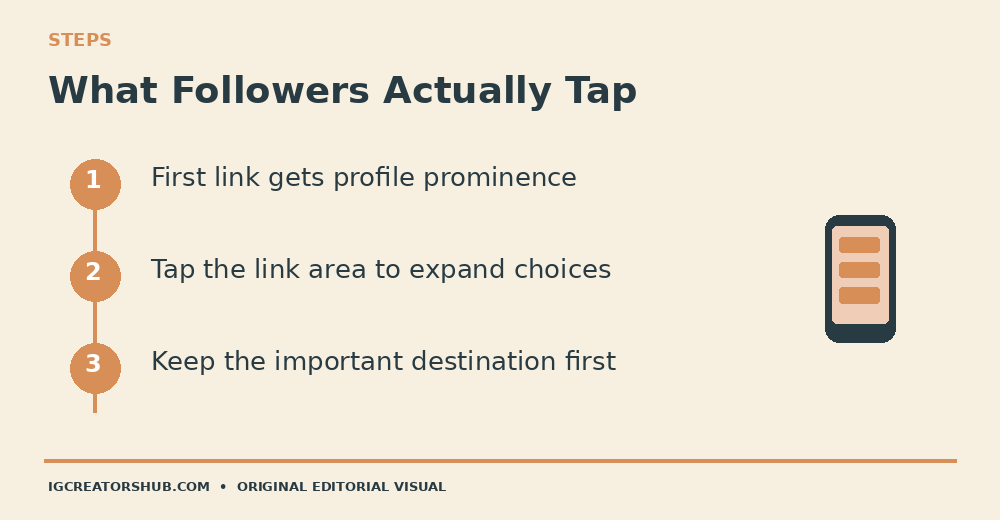
Instagram does not show five full, separate buttons beneath your bio. The first link is the most visible; visitors can tap the link area to open the list of other available links. This matters if your second link is the one you keep mentioning in Stories, because some people may not realize there are more destinations behind the first label.
For example, suppose your profile has “Book a session” first, “View portfolio” second and “Free location guide” third. A first-time visitor initially sees the first link and an indication that more are available, not three equally prominent calls to action. Later’s discussion of link placement describes this expanded-link view. Test it yourself by opening the link area after saving.
How to Choose and Reorder Your First Link
Choose the first link by the action people are most likely to need now, not by which URL you added earliest. For a service business, that may be the booking page. For a photographer who is not taking new bookings, an updated portfolio could be more honest than a booking link. For a creator launching a newsletter, the signup page might temporarily be the most useful starting point.
To change priority, go back to Edit profile > Links. On versions that provide a reorder control, move the important link to the top and save. Some versions require editing or removing and re-adding links to change their order. If your screen differs, follow its available controls rather than assuming a particular icon is present. Check the first displayed title from your public profile afterward.
Instagram Links vs a Link-in-Bio Page
Native Instagram links and a separate link-in-bio page solve different problems. Choose based on how many destinations you maintain and whether you need a designed landing page or measurement tools; you do not need to buy a service merely because you have two URLs.
Pick the Simpler Route That Fits
| Need | Native Links | Link Page |
|---|---|---|
| Two or three destinations | Simple and free | Optional |
| More than five destinations | Not enough slots | Can group links |
| Branded layout | Standard Instagram display | Depends on provider or your site |
| Per-destination reporting | Limited direct detail | Provider analytics may help |
Start with native links when they meet your needs. Add a dedicated link hub only when it solves a real navigation or measurement problem.
Some link-page companies advertise advanced features. Check what their current free and paid plans actually include rather than assuming every feature is available at no cost. You can also create a simple links page on your own website if you control one.
How to Add a Link-in-Bio Page to Instagram
If you have more destinations than Instagram’s native slots, you can make a single hub page and place that page’s URL in one native Instagram link slot. Visitors then open your hub and choose from your site, shop, videos, newsletter or booking links.
- Create a mobile-friendly links page on your website or with a reputable link-page service.
- Add clear buttons with labels that describe what opens, such as “Read the latest guide”, not five identical “Click here” buttons.
- Preview the hub on a phone and remove outdated offers or broken destinations.
- Copy the full public hub URL. In Instagram go to Edit profile > Links > Add external link.
- Paste the hub URL, give it a short title and save. Return to your public profile to check it opens.
You can keep one or two native links alongside the hub if those individual destinations deserve direct visibility. A hub is not a workaround for inaccurate offers, dead links or confusing calls to action.
Bio Link Examples for Creators and Small Businesses
These sample setups make the choice concrete. The link labels below are illustrations, not clickable Instagram screenshots or claims that an individual business exists.
Photographer Taking Bookings
First link: “Check session availability” (actual booking form). Second: “See recent galleries” (portfolio). Third: “Session FAQs” (what is included and how enquiries work). If the calendar is closed, move the portfolio ahead of bookings instead of sending visitors to an unavailable service.
Digital Creator Sharing Free Resources
First link: “Get the free template” (resource landing page). Second: “Watch tutorials” (video library). Third: “Join the newsletter” (signup form). If the resource expires, update both the label and the destination together.
Local Maker with a Small Shop
First link: “Shop available pieces” (current inventory). Second: “Custom order details” (real enquiry information). Third: “Upcoming market dates” (current schedule). A permanent contact page may work better than an old sale announcement in the first slot.
Why Instagram Bio Links Are Missing or Not Working
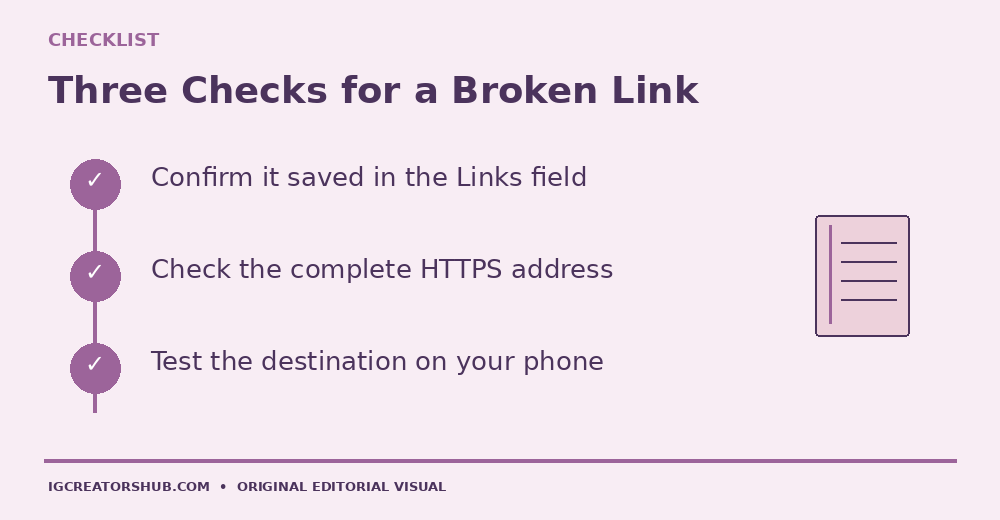
If your new link seems to have disappeared, check its saved location first. The bio text and Links editor are different fields. Go back to Edit profile and confirm the destination appears under Links, then return to the profile and open the link menu. The second link may be hidden behind the expanded list rather than absent.
If the link is listed but does not open, try the following in order:
- Open the exact destination address in a normal phone browser. Fix a broken page, expired redirect or misspelled URL at its source.
- Use the complete https:// address, then save the link again.
- Update the Instagram app and reopen your profile. Labels and feature rollouts can differ across versions.
- If Instagram rejects one domain, check the displayed warning and the destination’s safety or redirect behaviour; do not bypass a security warning with misleading shorteners.
- Check from a second device or ask a trusted person to open your profile if you need to distinguish an account-specific display problem from a broken destination.
Do not assume you need a paid plan, a certain follower count or a switch to business status before trying the native Links editor. If the feature is missing entirely, use Instagram’s in-app Help reporting route and describe the account/app version and behaviour you see.
Can You Track Individual Instagram Bio Link Clicks?
Adding multiple links is easy; attributing a specific tap to a specific destination is less straightforward. Instagram professional account Insights may show aggregate profile or link activity, but it does not provide a list of the usernames who clicked each bio link. A tracking-enabled link page or analytics on a website you own can help with destination-level reporting, but neither automatically reveals a visitor’s Instagram identity.
For the difference between anonymous link taps, website visits and named accounts, see our existing guide on how to see who clicked your link on Instagram bio. If you want to track visits to your own website, campaign-tagged URLs can be useful, provided your analytics setup is configured correctly. Counted clicks are not necessarily unique people.
Final Checks Before You Share Your Bio Link
Before saying “link in bio” in a Reel, caption or Story, open your public profile and complete this small audit. Check the first label: does it match your current promise? Expand the link list and read every title as a stranger would. Open each destination on a phone, including the last one, and confirm the page has a clear next action.
Finally, remove links to past events, unavailable services or outdated promotions. For a shop, show current products; for a creator, point to the actual resource mentioned in the post. You can use Instagram’s five direct links, a single link hub, or a combination. The best setup is the one your audience can understand and you can realistically keep updated.