If another account tags you in a photo or Reel, that post may appear in the Tagged tab on your Instagram profile. For a creator, freelancer or business, unwanted tags can distract from your work. You can hide a post from your profile, remove your username from the original post or screen future tags before they appear.
This guide explains how to hide tagged photos on Instagram and what each setting really changes. Menu names vary between Android, iPhone and app versions, so check the action label before confirming.
Choose the Right Tag Action
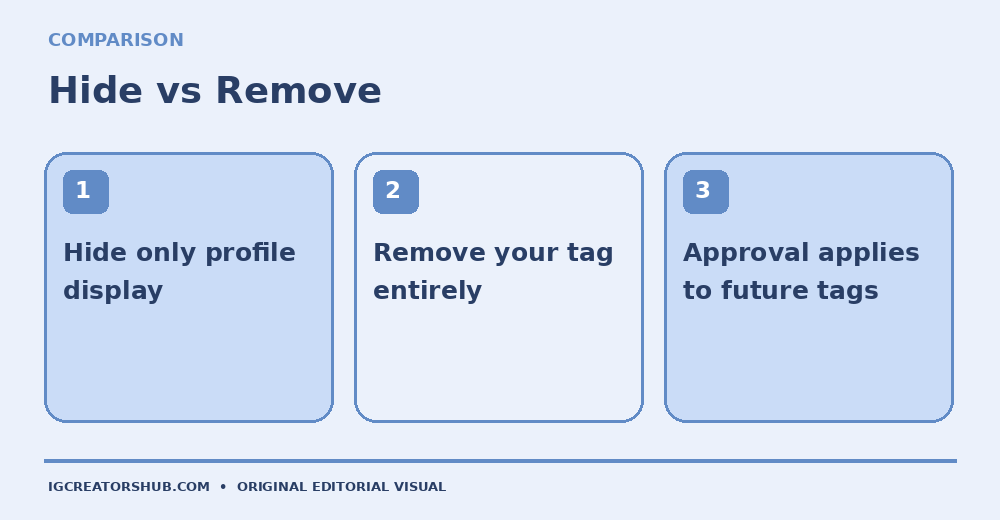
Hide: stops the post showing on your profile; the original and tag remain.
Remove me: takes your username off the original post.
Manual approval: lets you review future tags before they display.
- How Tagged Posts Appear on Your Instagram Profile
- How to Hide One Tagged Photo from Your Profile
- How to Hide Multiple Tagged Photos
- How to Remove Yourself from a Tagged Post
- How to Manually Approve Future Tags
- How to Control Who Can Tag Your Account
- How to Restore a Hidden Tagged Photo
- Tagged Posts Checklist for Creators and Businesses
- Troubleshooting Missing Tag Options
- Frequently Asked Questions About Instagram Tagged Photos
How Tagged Posts Appear on Your Instagram Profile
A tagged post is content someone else published and linked to your username. It can appear in the Tagged tab of your profile even though it is not part of the regular posts grid. For a freelance designer, consultant or small business, that separate tab may contain client photos, event snapshots or irrelevant promotional tags. You can control your profile appearance without necessarily changing the original post. The key is knowing whether you want to hide a post, remove a tag or approve future tagged posts first.
How to Hide One Tagged Photo from Your Profile
- Open Instagram on your phone and visit your profile.
- Tap the Tagged tab (the person-in-a-frame icon) and open the photo or video you want to hide.
- Tap your username on the image, or open the post’s three-dot menu and choose Tag options, depending on your app version.
- Choose Hide from My Profile or the corresponding control to stop showing the post on your profile.
- Return to the Tagged tab to check the result.
The original upload stays on the other person’s account. Your tag may remain attached to it; hiding is not a privacy guarantee that nobody can find the original.
How to Hide Multiple Tagged Photos
If your Tagged tab has accumulated unrelated posts, a bulk review can be quicker than opening each one. Go to your profile, open the menu and look for Your activity → Tags, or Settings and privacy → Tags and mentions → Manually approve tags. These menu paths vary by app release. Open the list of tagged posts, select Edit or Select when offered, choose the items to remove from your profile view, then select Hide and confirm. Before tapping a bulk action, check whether the button says Hide or Remove; the latter changes the actual tagging relationship.
How to Remove Yourself from a Tagged Post
Choose removal when you do not want your username attached to someone else’s photo or Reel. Open the original post, tap your username on it or open Tag options, select Remove Me From Post, and confirm. This is different from hiding: hiding only changes your profile display, while removing the tag severs the tag link. You do not gain permission to delete someone else’s original post. A creator should use removal for mistaken identities, unrelated sales promotions or posts they no longer want connected to their professional profile. If content is abusive or impersonates you, review Instagram’s reporting tools separately.
How to Manually Approve Future Tags
To prevent new tagged posts appearing automatically, open your Instagram profile, tap the three-line menu, and go to Tags and mentions under the account interaction settings. Find Manually approve tags and turn on approval for tagged posts. Review pending tags there when prompted and choose which ones appear on your profile. Some versions present this option under Settings and privacy or a different menu grouping. This setting is not retroactive: posts already displayed on your profile must be reviewed separately. It also does not stop another account from attempting to tag you.
How to Control Who Can Tag Your Account
Manual approval governs visibility on your profile; tag permissions determine who is allowed to tag you. In Tags and mentions, check Who can tag you for options such as everyone, people you follow or no one. A brand collaborating with customers may prefer broader tagging permissions and manual review, while an account repeatedly targeted by irrelevant promotions may restrict who can tag it. Choose based on your actual collaboration needs. A mention using @username in a caption or comment is not necessarily the same as an image tag, so review mention settings separately.
Tag Control Decision
Open collaboration: allow relevant tags and review them manually.
Heavy spam: narrow who may tag you.
Wrong association: remove your tag from the particular post.
How to Restore a Hidden Tagged Photo
If you hid a legitimate collaboration, return to the original photo on the other account. If you cannot easily locate it, look through that account’s posts or a saved link to the content. Open Tag options or tap your tag and choose Show on My Profile when available. Check your Tagged tab afterward. This works for a hidden tag that still exists. If you previously removed yourself from the post, you cannot simply unhide it; the original poster would generally need to tag your account again. Avoid promising a universal one-tap restoration route across app versions.
Tagged Posts Checklist for Creators and Businesses
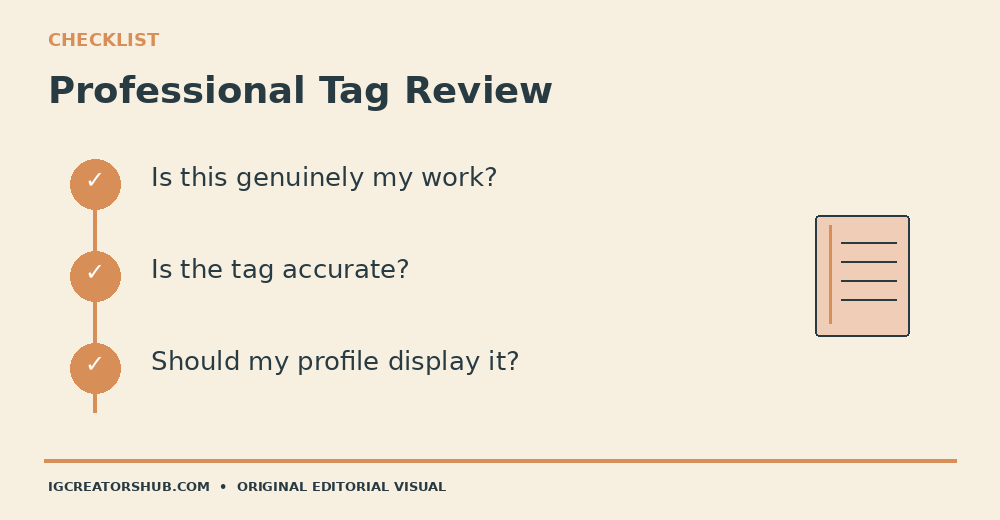
For a portfolio account, review tagged images by whether they represent your actual work. For a bakery or maker, keep genuine customer mentions and collaborations where appropriate, and hide unrelated giveaway spam. For a service professional, remove a mistaken identification rather than letting it imply a client relationship.
A useful monthly review is: check the Tagged tab, hide irrelevant images, remove inaccurate tags, and review pending tags before approving them. If a post contains customer information, make a separate judgment about consent and privacy before amplifying it. Your profile should communicate your real professional work, not every post in which another person typed your handle.
Troubleshooting Missing Tag Options
If you do not see Hide from My Profile, make sure you opened a post where your account is actually tagged rather than merely mentioned in the caption. Tap the photo to reveal the username tag; alternatively inspect the three-dot Tag options menu. Update the mobile app and reopen the post if labels differ from older tutorials. For bulk management, try Your activity → Tags or Tags and mentions; computer interfaces may offer fewer controls. If the poster deleted the original or removed your tag, the item cannot be restored through your own profile settings. Never sign in to an unverified third-party app just to manage tags.
Frequently Asked Questions About Instagram Tagged Photos
Does Hiding a Tagged Photo Delete It?
No. It stops that post appearing on your profile; the original post stays with its creator unless they change it.
Will Someone Know If I Hide Their Tagged Post?
The person is not normally notified just because you hide a tagged photo from your own profile. They might still notice changes if they inspect your profile.
Does Manual Approval Hide Old Tags?
No. Review already-visible tagged content separately.
Can I Hide a Tag Without Blocking the Account?
Yes. Hiding a tagged item is a profile-display action, independent of blocking or limiting who can tag you.
For menu comparisons, see Instasize’s tagged-photo guide and Guiding Tech’s hide and restore guide. For another practical account-management task, read our Instagram bio-link click guide.
Choose the least disruptive control that meets your actual goal. A tidy professional profile and a tag on somebody else’s post are different things; Instagram gives you separate tools to manage them.