A beautiful Instagram post can still leave someone out if the picture carries information they cannot see. Alt text gives screen-reader users a short description of the image, and Instagram lets you add it to feed photos without changing your visible caption.
Here is how to add alt text to Instagram posts on a phone or computer, how to edit older photos, and how to write descriptions that actually help. The menu wording can vary by device and app version, so use the alternative paths below if your screen looks different.
Quick Answer: Find the Alt Text Field
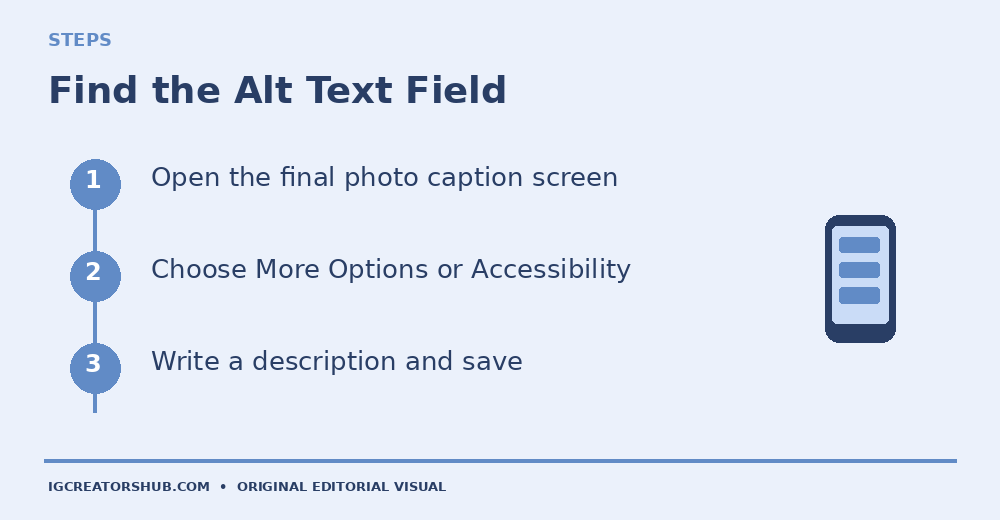
While creating an Instagram photo post, reach the final caption screen, open More Options (or Advanced Settings on some versions), choose Write Alt Text, describe each photo, and save before sharing. For an existing photo, open its three-dot menu, choose Edit, then look for Edit Alt Text.
These are image-description controls, not the regular caption box. If the label is missing, check the desktop Accessibility section or the troubleshooting steps later in this guide.
- How to Add Alt Text to a New Instagram Post
- How to Edit Alt Text After Publishing
- How to Add Alt Text on Instagram Desktop
- What Makes Instagram Alt Text Useful?
- How to Write Clear Alt Text for Your Images
- Alt Text Examples for Business and Creator Posts
- Alt Text vs Captions and Image Descriptions
- Alt Text for Carousels, Stories and Reels
- Why the Alt Text Option Might Be Missing
- Final Accessibility Checklist for Your Next Post
How to Add Alt Text to a New Instagram Post
Start with a feed photo that you own or have permission to share. The alt text belongs to the image, so decide what a person would need to know about that image before you press Share. This works especially well for product details, portfolio examples, educational graphics and announcements.
- Open the Instagram app, begin a new photo post and choose the image or images.
- Continue through the crop and editing screens until you reach the screen where you normally write the caption.
- Scroll down and open More Options. Some versions call this area Advanced Settings.
- Under accessibility options, choose Write Alt Text. If you selected several photos, look for a separate description field for each one.
- Write a concise sentence about the meaningful visual information. Include important words printed inside the image when they matter.
- Save the description, return to the posting screen, review your caption and audience settings, and share only when everything is correct.
For example, a baker showing a new cake should describe the visible cake, colors and any readable product label, not simply write “new cake.” The exact wording should match the photo in front of you. Texas Tech University’s social media accessibility walkthrough documents the current More Options route and explains that carousel images need individual descriptions.
How to Edit Alt Text After Publishing
You do not have to delete and repost a feed photo just because you forgot its description. The editing route is useful for important older product posts, evergreen tutorials and portfolio images. Start with one photo and confirm the change before working through an archive.
- Open your profile and select the existing photo post.
- Tap the three-dot menu and choose Edit.
- Look for Edit Alt Text near the image. On some versions it appears as a small image-level control.
- Update the description and tap Done, then save the post edit if the app asks again.
When the option is not visible, try editing from Instagram on a computer instead of assuming the feature was removed. The location has changed across versions, and an edit that appears saved on one device should not be treated as independently verified on every other device.
How to Add Alt Text on Instagram Desktop
Instagram’s desktop composer offers another route for people who prepare brand posts on a laptop. On the final screen for a new photo, find the Accessibility section below the caption area, expand it, and enter the description for the relevant image. Then finish reviewing the post before sharing.
For an existing desktop post, open the image, select the three-dot menu and Edit, then expand Accessibility in the edit window. Enter or correct the description and choose Done. The independently maintained Accessible Social desktop and mobile guide documents these paths, but your account may show slightly different controls.
Do not rely on a desktop save alone if you are auditing accessibility for a client. Reopen the edit screen and confirm the field still contains the intended text; where possible, test the post with a screen reader as well.
What Makes Instagram Alt Text Useful?
Alt text is a short explanation of a visual for people who cannot rely on seeing it. A screen reader can announce the description instead of leaving the image as an unexplained object. Instagram can generate automatic descriptions, but those may miss a price on a product card, the point of a diagram or the difference between two similar items.
Think of the reader’s task. If a photo shows a ceramic artist shaping a bowl, the action matters more than every object in the background. If a sale graphic shows a deadline, that date is essential. The American Foundation for the Blind’s Instagram accessibility guidance recommends describing the key information, avoiding decorative symbols and including important visible text.
Alt text is not a secret reach switch. Writing a natural description is primarily an accessibility practice; there is no verified reason to promise extra followers or rankings from adding a string of keywords.
How to Write Clear Alt Text for Your Images
Use a simple order: main subject + meaningful action or relationship + important visible text. One or two clear sentences are usually easier to understand than a long inventory of colors and objects. Instagram’s character counter can vary by interface, so check the field you are using instead of trusting an old universal limit quoted online.
Write what the image actually communicates. If it is a product comparison, name the difference. If it is a workshop flyer, preserve the event date and location in accessible text. If it is a portrait for a portfolio, describe the person and relevant setting without guessing age, identity, emotions or other unseen facts.
Skip phrases such as “image of” when they add nothing, avoid emoji strings, and do not stuff your business name repeatedly. When text in the graphic is too long for concise alt text, place a fuller image description in the visible caption as well. That way the important message is not trapped inside pixels.
Alt Text Examples for Business and Creator Posts
These are illustrative examples for hypothetical images, not descriptions of real photos on the site. Copy the structure, then replace every detail with what your own image actually shows.
- Handmade product: “Three amber candles labeled Cedar and Citrus on a wooden shelf, with the 200 g size visible on the front jar.”
- Service portfolio: “Designer sketching a blue logo on a tablet beside a notebook of black-and-white draft marks.”
- Event announcement: “Cream-colored workshop flyer reading Free Portfolio Clinic, October 29 at 7 PM UTC, with a blue registration button.”
- Before-and-after work: “Two side-by-side photos of the same shop display: cluttered shelves on the left and clearly labeled rows on the right.”
- Educational carousel: “Simple flowchart showing inquiry, written quote and booking confirmation in three connected boxes.”
Notice the difference between “candles on a shelf” and the first example: the product type, visible label and arrangement help someone understand what the post is selling. For the workshop graphic, the words and date are more important than the decorative background. These choices depend on the content, not a one-size-fits-all caption generator.
Alt Text vs Captions and Image Descriptions
A caption and alt text serve different readers’ needs. The visible caption can tell a story, invite a question or provide an ordering link; alt text describes what the image conveys. A longer image description in the caption is useful when a chart, flyer or detailed visual contains more information than a short alt-text field can comfortably hold.
Which Text Goes Where?
| Field | Purpose and Example |
|---|---|
| Alt text | “Two blue ceramic mugs beside a handwritten card marked New Glaze.” Describes the visible content. |
| Caption | “The new glaze is here. Which mug would you choose?” Gives context and starts a conversation. |
| Longer image description | “Image description: Two blue mugs stand side by side; the left is speckled and the right has a smooth finish.” Adds detail when needed. |
The wording above assumes those details are visible in the real photo. Do not invent product specifications that are not shown.
If your visible caption needs more personality, browse our Instagram post caption examples for writing inspiration. Keep the image description separate from promotional copy. The University of California, Berkeley’s alt-text and image-description guidance also recommends including essential words from an image in accessible post text.
Alt Text for Carousels, Stories and Reels
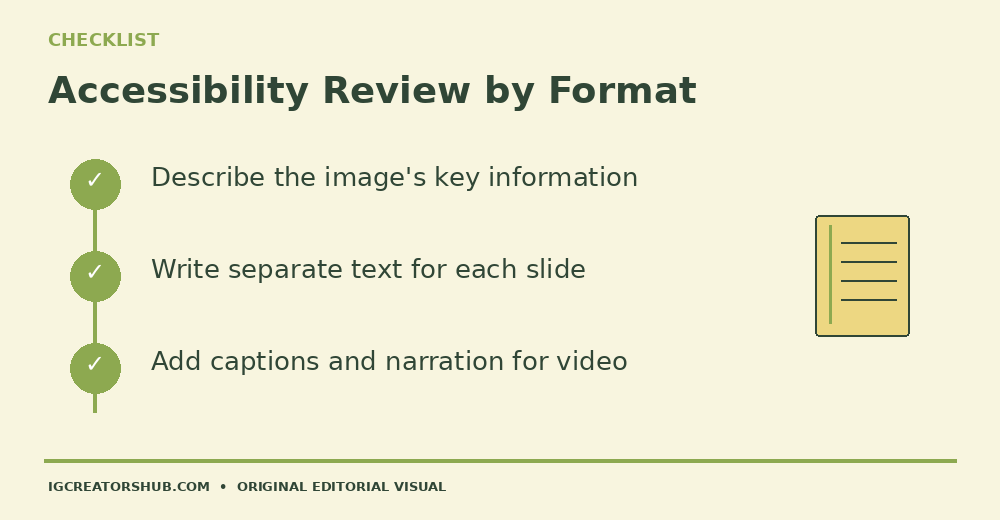
For a carousel, describe each meaningful image separately. If slide one introduces a product, slide two shows a size comparison and slide three contains delivery instructions, repeating the same generic alt text across all three hides the useful differences. Write one accurate sentence for each slide.
Stories do not have the same supported manual alt-text field as feed photos in the guidance reviewed for this article. For a Story containing essential words, make those words available in readable on-screen text and consider explaining the visual message in another accessible format. Reels are videos, so spoken narration, accurate captions for speech and a clear written post caption matter; do not assume the feed-photo alt-text menu applies to every Reel format or cover.
Accessibility is a collection of small decisions, not one checkbox. The most useful option depends on whether the information lives in a still photo, multiple slides or moving video.
Why the Alt Text Option Might Be Missing
If you cannot find Write Alt Text, first check that you are creating or editing a photo post rather than looking at Story or video controls. Then return to the final caption screen and look under More Options, Advanced Settings or Accessibility. These labels differ in published instructions because Instagram changes its interface.
Next, update the app if a newer version is available, close and reopen the editor, or try the desktop composer. If the field appears to save but the text disappears, avoid making unsupported claims that the post is accessible. Keep your drafted description in your notes, add essential image information to the caption, and report the issue through Instagram’s help controls if it persists.
Do not delete a valuable published post merely to chase a menu. Make one controlled test on a new noncritical photo, confirm the option, and revisit the original post when you have a reliable edit path.
Final Accessibility Checklist for Your Next Post
Before a business, creator or nonprofit account shares a visual, check the whole message rather than only the alt-text field. This is a short repeatable review that a solo creator can finish without special software.
- Purpose: Identify the one thing a person should understand from the image.
- Accuracy: Read the description aloud and remove details that are not visible.
- Important text: Include dates, prices, instructions or labels that affect the reader’s next step.
- Multiple images: Give each carousel slide its own meaningful description.
- Other formats: Check captions and narration for videos and longer image descriptions for complex graphics.
- Final review: Save, reopen the edit field when possible, and test with a screen reader if your team has access to one.
The goal is simple: someone should understand the post’s useful visual information without needing to see the picture. Write for that person first, then publish the content with confidence in what you have actually checked.